**Disclaimer:
My blog contains content that may be objectionable. Some of the posts in this blog may contain strong language or (because of my religious and personal views) may be offensive to some readers. In the future I may separate my programming posts from personal posts, but for now they are all contained in this blog. I should not have to even mention this, however some readers may be looking at my blog for programming help, therefore I am giving an advanced warning. All posts with material that may be offensive contain 'Objectionable material' at the end of the post title. If you see a post with "Objectionable material" in the title, and you are closed-minded or think that you may get queasy, don't fucking read it.


Tuesday, August 10, 2010

Creating a line graph using dates with JpGraph

If you need to present data in a graph or chart on your web page, there are a few options. One of them that I found useful is JpGraph. There were a few others I found as well, but I chose this one for the following reasons:
  • It includes many different types of charts and graphs, from your basic line and pie charts to geolocation and stock charts.
  • It is flexible and very customizable
  • It is well documented, and there are plenty of examples (images along with the source code) included with the download.

JpGraph uses the PHP GD library to build the graphs into images. The images can be returned and presented directly in the browser, or saved to a cache file (or both).

For my uses, I needed a line graph using dates taken from a MySQL Timestamp. I also wanted to save the images to a cache file with a timeout, to prevent a new image from being generated if a recent version already exists.

I created a new PHP file and placed the code to create the graph into its own function. This way, I can add another graph function in the file later if need-be, and I can somewhat customize the graph through the function arguments while still keeping a consistent format and not re-writing code. To keep the example as simple as possible, I am not passing the title and legend text as arguments to the function. First I will show an example of how to create and save the graph, then I will show how I used it in my page.

Source Code:
function newLineGraph($cachefilename, $ydata, $xdata)
{
 require_once ('jpgraph-3.0.7/src/jpgraph.php');
 require_once ('jpgraph-3.0.7/src/jpgraph_line.php');
 require_once ('jpgraph-3.0.7/src/jpgraph_utils.inc.php');
 require_once ('jpgraph-3.0.7/src/jpgraph_date.php');
 // First we create the graph with a size of 600 x 500. 
 $graph = new Graph(600, 500);
 // Check if the image already exists in the cache and is valid
 $valid = $graph -> cache -> IsValid($cachefilename);
 if ($valid)
 {
  // The cached file exists and has not expired, so we do not 
  // need to create a new one
  return;
 }
 else
 {
  // The cache file does not exists or has expired, so we
  // create the graph as normal
 
  // Tell the graph that we want to cache this image
  // with a timeout of 60
  $graph -> SetupCache($cachefilename, 60);
  //Set the scale to use DateScale
  $graph -> SetScale("datlin");
  //Set the text for the graph Title
  $graph -> title -> Set('My Date Graph');
  //Enable clipping to prevent the line from extending
  // outside of the plot area
  $graph -> SetClipping(true);
  // Set the date format to use for the date labels
  $graph -> xaxis -> scale -> SetDateFormat('M-d');
  // Since we're taking in dates from MySQL, we need to
  // convert them to time
  $xDates = array ();
  for ($i = 0; $i < sizeof($xdata); $i++)
  {
   $time = strtotime($xdata[$i]);
   array_push($xDates, $time);
  }
  $dateUtils = new DateScaleUtils();
  // We'll let getAutoTicks calculate all of the ticks between
  // our min and max dates. We also set the max number of
  // ticks to 5.'
  $autoTicks = $dateUtils -> getAutoTicks($xDates[0],
$xDates[sizeof($xDates) - 1], 10); // Se the tick positions to the ones returned by getAutoTicks $graph -> xaxis -> SetTickPositions($autoTicks[1]); // Now we create the actual plot line $lineplot = new LinePlot($ydata, $xDates); $lineplot -> SetLegend('My Plot Line'); // Add the plot line to the graph $graph -> Add($lineplot); // Get the filepath where the cache file will be saved // NOTE: You MUST specify an absolute filepath here, // for example '/myCacheFiles/filename' will not work $absolutePath = (CACHE_DIR . "" . $cachefilename); // And finally, set the filepath when we call the Stroke function $graph -> Stroke($absolutePath); } }

Now that we have the graph created and saved to the cache, we can present it on the page. We will place it just as any other image in HTML, using the <img> tag. You can use any filename you wish, whether it be static or dynamic. For my purpose I chose to use a dynamic generated filename, which includes the date and hour, as well as a unique ID. If you choose to generate a filename, be sure that it is unique enough so that if the image has not expired in the cache and the browser pulls it up, it does not present the wrong data. For this example I will use a simple static filename called myFile.png. The default image type in JpGraph is .png.

Important Note: The graph must be created before anything is written to the page. Create the graph, save the filename to a variable, then use the variable in your image tag.

Another Note: I found that when I use full Timestamps directly from MySQL, the graph works for the most part, however the leftmost label disappears on the x-axis, and the right label and plot point is pushed to the left slightly. It is not a big concern, but enough to prevent a professional looking graph. I didn't spend much time trying to figure this out, as simply selecting only the date from the timestamp in the MySQL query solved the issue. I have not tried using times in place of dates, so I'm not sure if the issue is present here or not.

Source Code:
<?php
$ydata = array ( 11, 12, 11, 10, 10.5);
$xdata = array ('2010-07-01', '2010-07-02', '2010-07-03',
'2010-07-04', '2010-07-05'); $filename = 'myFile.png'; $graph = newLineGraph($filename, $ydata, $xdata); ?> <html> <title>My Graph Page</title> <body> <img src='<?php echo $filename; ?>'></img> </body> </html>

The result:

And there ya have it, folks - a simple line graph with dates using JpGraph. Here are a few links that helped me that you may want to look in to:

Sunday, August 8, 2010

Get Date from MySQL Timestamp in PHP


Sometimes you need to do something with a Timestamp taken from MySQL. Whether that is formatting the Timestamp for better user readability, or to do some sort of processing with it, this can be easily accomplished by converting the Timestamp to a Date. The format of a Timestamp in MySQL is:
'YYYY-MM-DD HH:MM:SS'
We can convert to a Date simply by using PHP's strtotime function:
//Normally the Timestamp would come from MySQL, but
//for the example I will define it here.
$timestamp = '2010-08-08 15:25:18';
echo date('D M j G:i:s Y', strtotime($timestamp));
echo '<br>';
echo date('d-m-y', strtotime($timestamp));


This will output the following lines:
Sun Aug 8 15:25:18 2010
08-08-10

Read more about the date and strtotime functions.

Thursday, July 29, 2010

PHP Exponential Decay Calculator


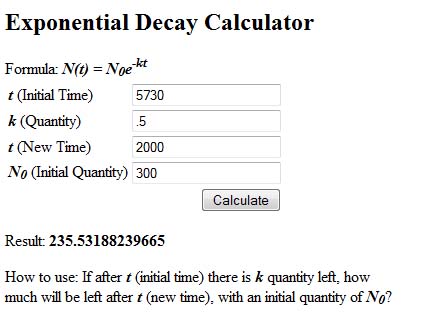
I've searched the web for hours looking for any kind of PHP scripts that calculate exponential decay. I was surprised not to find any, so I've written one up quickly. It's not very advanced, but it gets the job done, and it does what I need it for. It includes a simple form to enter values, and displays the result once the form is submitted. I will supply the script here for anyone to take and use. If you modify or add to it, please supply me with the new code and I will update it here for others to use as well. The formula used is:
N(t) = N0e-kt
For more help on exponential decay, I found these links to be useful to me:
How to use - If you know the quantity for a time, this script will solve for k. Enter the initial time t, and the quantity k (for example, .5 for half-life), then enter the initial time and quantity for which you want to solve.

Source Code:
<!--
// Exponential Decay Calculator
// Original Author: Mike Burch
// Created: 29 July 2010
// Description: A simple form and script to calculate exponential decay.
-->
<h2>Exponential Decay Calculator</h2>
Formula: <b><i>N(t) = N<sub>0</sub>e<sup>-kt</sup></i></b><br>
<form action="<?php echo $_SERVER['PHP_SELF'];?>" method="POST">
<table>
<tr><td><b><i>t</i></b> (Initial Time)</td>
<td><input type="text" name="ti" value="<?php echo @$_POST['ti']; ?>"></td></tr>
<tr><td><b><i>k</i></b> (Quantity)</td>
<td><input type="text" name="k" value="<?php echo @$_POST['k']; ?>"></td></tr>
<tr><td><b><i>t</i></b> (New Time)</td>
<td><input type="text" name="t" value="<?php echo @$_POST['t']; ?>"></td></tr>
<tr><td><b><i>N<sub>0</sub></i></b> (Initial Quantity)</td>
<td><input type="text" name="N0" value="<?php echo @$_POST['N0']; ?>"></td></tr>
<tr><td colspan="2" align="right"><input type=submit name="calc" value="Calculate">
</td></tr>
</table>
</form>
<?php
if (isset($_POST['calc']))
{
$k = $_POST['k'];
$ti = $_POST['ti'];
$t = $_POST['t'];
$N0 = $_POST['N0'];
$k = log($k) / $ti;
$k = -$k * $t;
$N = pow(2.718281828, -$k) * $N0;
echo "Result: <b>$N</b>";
}
?>
<p>How to use: If after <i><b>t</b></i> (initial time) there is <i><b>k</b></i> 
quantity left, how<br>
much will be left after <i><b>t</b></i> (new time), with an initial quantity of 
<b><i>N<sub>0</sub></i></b>?</p>

Wednesday, July 28, 2010

Wow, it's been forever since I posted anything here. I've been busy working on a project for the last few months, and it seems like there is no end in sight. I had planned for a year before it was complete, so we'll see if I can make it in time. I will try to post here more often, even if just a quick like or two.

Sunday, August 23, 2009

Listing file and folder names in text file

How do I copy a list of file names in a directory or folder to a text file? I've seen this answer asked many times on the web. And many times the asker is directed to sites offering software to do this. However, this can be done quickly and easily with a few keystrokes at the command prompt. Here is how to do it in windows.

-Open the command prompt. It is usually located in Start>Programs>Accessories, or try searching windows for "cmd".

-Now, navigate to the directory using the 'cd' command. For example, to get to the Documents folder, when you open the command prompt you should be in your home directory.
C:\Users\YourUsernameHere>
To get to the Documents folder, you would enter
"cd Documents" (without the quotes).
Do this until you get to the folder that you want.

-Once you have navigated to the directory you want to list, type "dir" then ">", then the text file that you want to save the list to, including the .txt extension. For example:
"dir >list.txt"
Will create a new text file named list.txt in the same directory that you chose.

**WARNING** If you choose the name of a file that already exists, it will be overwritten without prompting!

You can also use options when creating the list. You may have noticed that the list included the date modified, whether the file was a directory, and the file size. Here are some options that you can use:
/b lists only the file names (including extension), but not dates and file sizes.
/s list subfolders
/a show all files including hidden and system files
/o sort alphabetically
/d sort by date

If you want to append the list to the end of a text file instead of completely overwriting the file, use ">>" instead ">".

If your directory name has spaces, you may need to enclose the file path with quotes.

You can also have the text file created in a different location, while using the full file path of the directory you want listed.

Putting this all together, say I want a list of some pictures I have in a folder called "Beach Pics" (notice the space in the name), with file names only, and sorted alphabetically. AND I want to create the text file on my Desktop so I can get to it quickly.
Open command prompt. This is shown:
C:\Users\Mike>
Navigate to the Desktop to create the file there by typing:
cd Desktop
Press Enter.
C:\Users\Mike\Desktop>
Now create the list by typing all of the following:
dir "C:\Users\Mike\Pictures\Beach Pics" /o /b >list.txt
Press Enter.

To understand what is going on here, the "dir" command lists all files in either the current directory, or the directory entered, if any. The ">" command simply outputs this directory list to a file, in this case our text file.

Friday, August 21, 2009

SSCCEs and getting help by providing test code

SSCCE: Short, Self Contained, Compilable and Executeable

When debugging a program, you may run into problems that you simply cannot find on your own. If you have tried using a debugger, and have gone over your code many times looking for the problem, it may be time to give in and ask for help. The first thing to do before asking your question is to create an SSCCE. This is a small simple test program that can be compiled and run by someone else to help find the bug. You should make this test case as simple as possible. Remove any code that is not related to the problem. Remove any GUI components, methods, variables and anything else that is not related to the problem. You want the code to be clean, readable, and short. The test case must also be compilable and executeable. There is no point in posting an SSCCE if the person trying to help cannot run the code to look for the problem. Be sure that the problem is in the test case. It can be a real pain to create a test case and spend the time to remove sections of code. But if you remove small sections, such as one method at a time, then try running the code before removing another section, you will find that 9 times out of 10 you will find the bug yourself. You can quickly narrow down and find a bug yourself this way, just by creating an SSCCE. If you have trimmed down your code and still cannot find the problem, post the code into a site like www.pastebin.com and then copy the url to add with your question. Be polite, clear, and concise when you ask your question. Tell them what is happening, what you have tried while debugging, and provide the SSCCE url. Don't be rude or demand help, as most of the people where you go for help are volunteers do not have to help you, however they are offering their personal time to help others. They also may not give you an exact answer, but will point you in the direction to find the answer yourself. This way you will learn why you have the bug and will be able to prevent it from happening again in the future.

Thursday, August 20, 2009

Learning the Java programming language

I have read many books on Java when I first got into computer programming. Most of the books I read had good information, but none of it really made much sense. From these books I learned how to write some code, but when it came time for me to actual create a class or method on my own, I had no idea where to start. While searching Google I came across a free course offered by Stanford. I highly recommend this for anyone wanting to learn Java programming. This is a full course with about 25 videos, each about an hour long. They give real hands-on learning, and all the hand outs and documentation is also provided. I picked up Java very quickly with this course, because it teaches the actual methodology and how to think and design your application when you begin programming. You can find these videos by either going to the Stanford University website at www.stanford.edu or by searching YouTube using keywords like "Programming methodology Stanford". Once you have watched the videos and have a basic understanding of Java, read the Java APIs from the Sun website. Google also provides many results for learning Java. If you get stuck on a problem and absolutely cannot solve it yourself, there are many places to go for help, including the ##java channel on the freenode irc network. Good luck and happy programming!